Accessible LinkedIn outreach: screen reader support for blind and low-vision sellers
Prospecting on LinkedIn means a lot of busy screens. LinkedClient has screen reader support for VoiceOver, JAWS and NVDA, which some users call blind mode, and its AI sales assistant Elsie does most of the visual work for you.
Yes, you can run LinkedIn outreach with a screen reader. In LinkedClient, turn on Screen reader support under Settings, Global settings, Appearance. It is made for VoiceOver, JAWS and NVDA and is saved on your account, so it’s on wherever you log in. Elsie, LinkedClient’s AI sales assistant, finds leads, writes messages, answers replies and books meetings, so you spend less time on busy LinkedIn screens. You can try it free for 14 days, no card needed, and your first month after the trial is $79.
Key takeaways
- Turn on Screen reader support under Settings, Global settings, Appearance.
- Made for VoiceOver, JAWS and NVDA, and saved on your account.
- Choose a text size from extra small to extra large, and light or dark mode.
- Elsie does the visual work: finding leads, writing, replies and booking.
- You can also run LinkedClient by chatting with an AI assistant.
How do you turn on screen reader support in LinkedClient?
Open Settings
Log in to LinkedClient and open Settings, then Global settings.
Find Appearance
Go to Appearance. It holds text size, theme and screen reader support.
Turn it on
Set Screen reader support to On. It is made for VoiceOver, JAWS and NVDA. The setting is saved on your account, so it stays on when you log in on another computer.
Text size and light or dark mode are saved in your browser only and change nothing for your team.
What makes LinkedClient easier to use without seeing the screen?
Screen reader support
A mode for VoiceOver, JAWS and NVDA, saved on your account.
Elsie does the visual work
She finds leads, researches them, writes messages and follows up, so you don’t scan profiles one by one.
Answers and booking
Elsie answers replies and agrees meeting times in the conversation, then books them in your calendar.
Text size and theme
Five text sizes from extra small to extra large, plus light and dark mode.
Use your AI assistant
Connect LinkedClient to an AI assistant and ask for what you need in plain language.
One list of what needs you
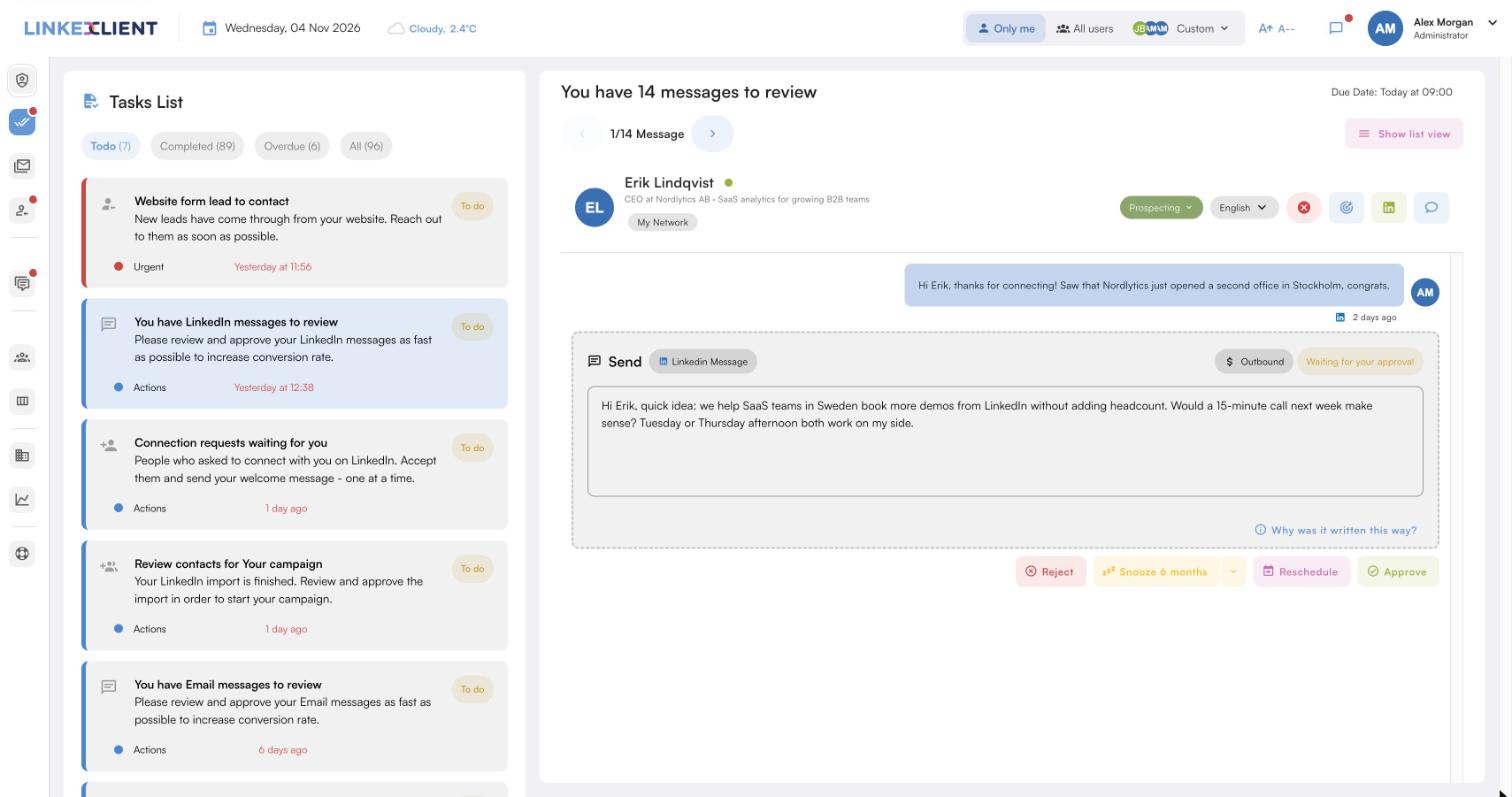
The task list collects what needs your decision, such as messages to approve.
Who is screen reader support for?
Blind and low-vision founders, salespeople and recruiters who use LinkedIn to find clients and candidates. We built screen reader support with feedback from a blind LinkedClient user, and we keep improving it.
If something doesn’t work well with your screen reader, tell us at support@linkedclient.com and we’ll look at it.
Can you run LinkedIn outreach by talking to an AI assistant?
Yes. Connect LinkedClient to an AI assistant through our LinkedIn MCP server. Then ask in plain language, for example “Which leads replied today?” or “Approve the messages Elsie wrote for my CFO campaign”. If your assistant supports voice input, you can do it by speaking.
What does Elsie do for you?
Most LinkedIn prospecting is reading profiles and writing messages. Elsie does that part, so you can focus on the conversations that turn into meetings.
Leads from one sentence
Describe who you want to reach, or import a LinkedIn, Sales Navigator or Recruiter search.
Personal messages
Elsie researches each person and company and writes connection requests, messages and emails.
Answers in five minutes
On autopilot Elsie answers replies within five minutes and handles common objections.
Meetings in your calendar
Elsie agrees a time in the conversation and books it, with no calendar link.
| LinkedClient | At a glance |
|---|---|
| What it is | An AI sales assistant. Elsie finds leads, writes to them on LinkedIn and email, answers replies and books meetings. |
| Free trial | 14 days, no card needed. Then $79 for your first month. |
| Price after that | Starter $149 per user per month, or $129 billed annually. Professional (2+ users) $299, or $249 billed annually. All 109 features in every plan. |
| Works on | LinkedIn Basic, Premium, Sales Navigator and Recruiter |
| Meetings | Booked in the conversation, without calendar links, in Google or Microsoft calendars |
| Connects to | HubSpot, Pipedrive, Salesforce, Zapier, webhooks and a public API |
| Compliance | GDPR and EU AI Act compliant |
| Setup | Live in about 15 minutes, with onboarding from a real person |
Try it with your screen reader
Try it free for 14 days, no card needed, then just $79 for your first month. Or book a 30-minute demo and we’ll show you who Elsie would contact for your business.
What results do LinkedClient customers get?
These results come from teams that use LinkedClient to book their sales meetings.
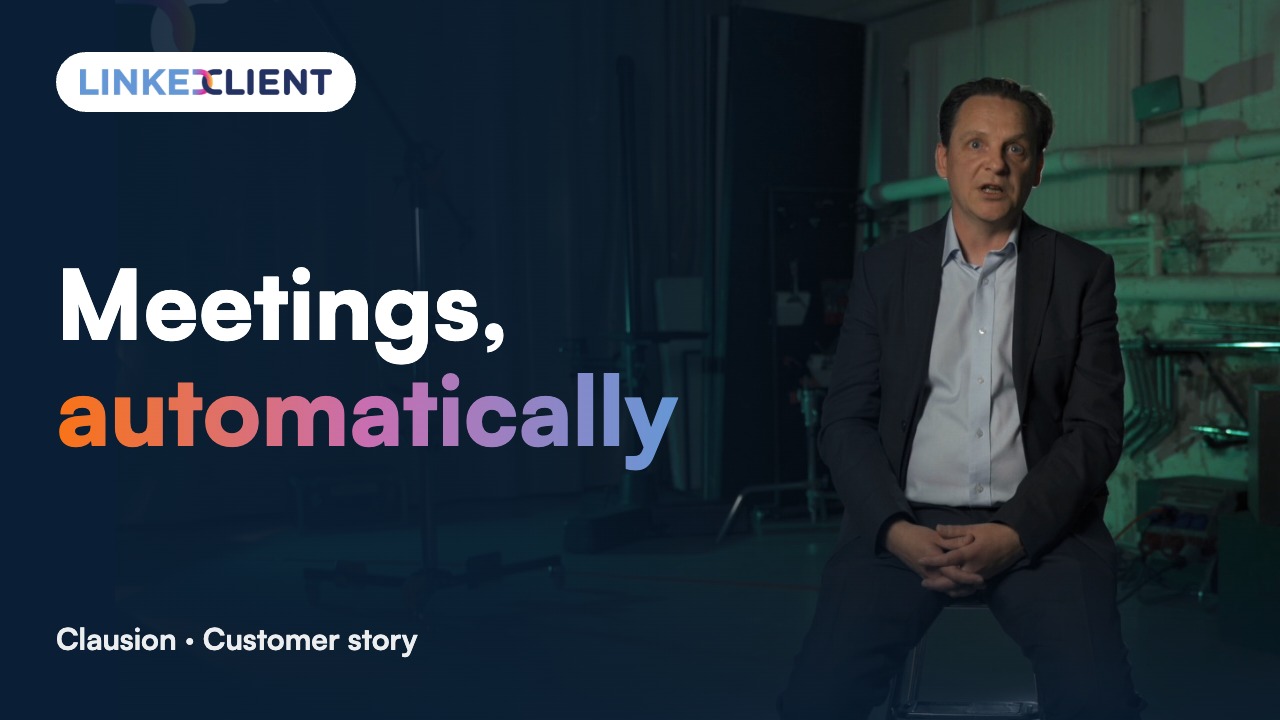
“We can pinpoint the people we want to contact and actually get meetings with them automatically.”
Keep reading
LinkedIn MCP server
Run LinkedClient from your AI assistant.
Read the guideElsie, the AI sales assistant
What she does from lead to meeting.
Read the guideCalendar links vs AI booking
How Elsie agrees a time in the conversation.
Read the guideSecurity and compliance
GDPR, the EU AI Act and your data.
Read the guideQuestions about screen reader support
Can’t find your answer? Ask a real person.
Book a 30-min demoDoes LinkedClient work with screen readers?
Yes. Turn on Screen reader support under Settings, Global settings, Appearance. It is made for VoiceOver, JAWS and NVDA.
What is blind mode in LinkedClient?
Blind mode is what some users call LinkedClient’s Screen reader support setting, which adapts the app for screen readers. It is saved on your account.
Which screen readers are supported?
VoiceOver, JAWS and NVDA.
Is the setting saved when I log in on another computer?
Yes. Screen reader support is saved on your account. Text size and light or dark mode are saved in each browser.
Can Elsie do my LinkedIn outreach for me?
Yes. Elsie finds leads, writes connection requests and messages, follows up on LinkedIn and email, answers replies and books meetings in your calendar. You decide how much runs on autopilot.
What if something isn’t accessible?
Tell us at support@linkedclient.com. We build screen reader support together with users and fix what gets in the way.
How much does LinkedClient cost?
Starter is $149 per user a month, or $129 when you pay yearly, and every plan includes screen reader support. Try it free for 14 days with no card, then pay $79 for your first month.
Try LinkedClient with your screen reader
Start your free 14-day trial today and Elsie can start this week. If you keep going, your first month is just $79. Or book a 30-minute demo and we’ll show you who she would contact for your business.
14 days free · No card needed · $79 for your first month