How to automate LinkedIn connection requests without getting restricted
Sending connection requests by hand takes hours every week. Automating them is easy. Doing it so people accept, and your account stays safe, takes a sequence and a few rules. Here they are, plus how LinkedClient runs the whole thing for you.
Pick people who fit, warm them up with a profile visit and a like, then send a connection request, with a short note when your plan allows one. Start at 10 to 15 requests a day and build up to 30 a day as your acceptance rate stays high. That is 150 to 200 a week, or 600 to 800 a month. Send only during working hours. LinkedClient runs every step for you within the daily limits you set, and you can approve every message before it goes out.
Key takeaways
- The sequence: visit, like, connect, welcome.
- Volume: build up from 10 to 15 a day to 30 a day.
- Up to 150 to 200 requests a week once your account is in good standing.
- Free accounts can add a note to only a few requests a month, so the warm-up matters.
- LinkedClient runs the sequence within your limits and working hours.
What should happen before and after the request?
Visit their profile
Many people check who viewed them. A visit puts your name in front of them before you ask for anything.
Like their latest post
A like from you shows up while they are paying attention to their own post.
Send the request
Add one line on why you want to connect when your plan allows a note. Free accounts can add a note to only a few requests a month, so most free requests go without one.
Welcome them when they accept
Thank them and ask one question about their work. That is where the conversation starts.
Spread these steps over a few days. A visit and a like on Monday and a request on Wednesday feel like a person. Fifty requests in ten minutes do not.
What does a good connection request note look like?
| Weak note | Better note |
|---|---|
| “Hi, I’d like to add you to my professional network.” | “Hi Sara, your post on onboarding new sales hires was spot on. I work with sales teams in logistics too, happy to connect.” |
| “We help companies grow revenue. Open to a quick call?” | “Congrats on the new Oslo office, Johan. I follow the Nordic logistics market closely and would like to connect.” |
| A long paragraph about your company | One line about them, one line about why you are reaching out |
A note is read in seconds. Make it about them, and leave the pitch for later. Need more examples? See our 15 connection request message templates.
How do you keep automated connection requests safe?
| Rule | Why it matters |
|---|---|
| Build up to 150 to 200 a week | Start at 10 to 15 a day. Accounts in good standing reach 30 a day. See the connection request limits. |
| Spread requests over working days | A steady number each working day looks like a person. Bursts and night-time sending do not. |
| Ask people who fit | LinkedIn says many ignored or reported requests can get your invitations restricted. |
| Withdraw old pending requests | Withdraw requests pending for 2 to 3 weeks and keep the total under 500. LinkedIn won’t let you invite the same person again for up to 3 weeks. |
| Keep notes short and personal | One specific line beats a paragraph. |
| Use a tool with limits you control | Choose a tool where you set a daily limit for every action and sending happens only in your working hours. |
Worried about getting flagged? Read about the LinkedIn shadow ban and LinkedIn jail.
How does LinkedClient automate connection requests?

People who fit
Describe your ideal customer. Elsie finds and researches the people who match.
Profile visit and like
Each person gets a profile visit and a like on their latest post before the request.
Requests with a note
Notes are written for one person, based on research about them, where your plan allows a note.
Welcome on accept
When they accept, Elsie sends your welcome message and keeps the conversation going.
Your limits, your hours
Up to 30 requests a day, only in your working hours, never more than you set.
Approve or autopilot
Approve every message yourself, or let Elsie run once she sounds like you.
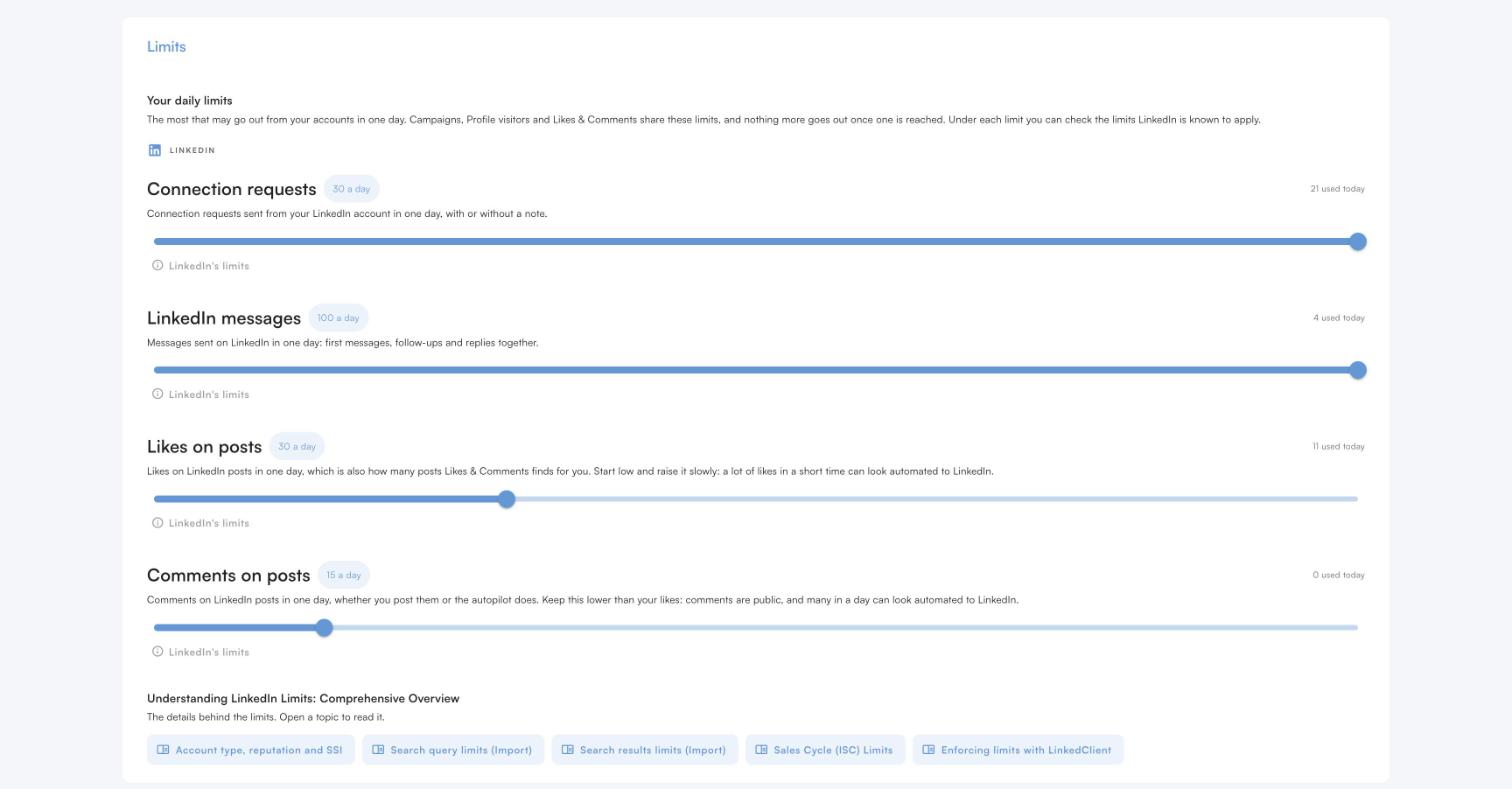
LinkedClient works on any LinkedIn plan, including the free one. Plans start with a free 14-day trial, then $129 per user per month billed annually, excl. VAT, with onboarding by a real person. See all features or how LinkedClient handles incoming connection requests.
Let Elsie send your connection requests
Try it free for 14 days, no card needed, or book a 30-minute demo and we’ll show you who Elsie would contact for your business.
What results do LinkedClient customers get?
These results cover all of LinkedClient. Connection requests are one part of it.
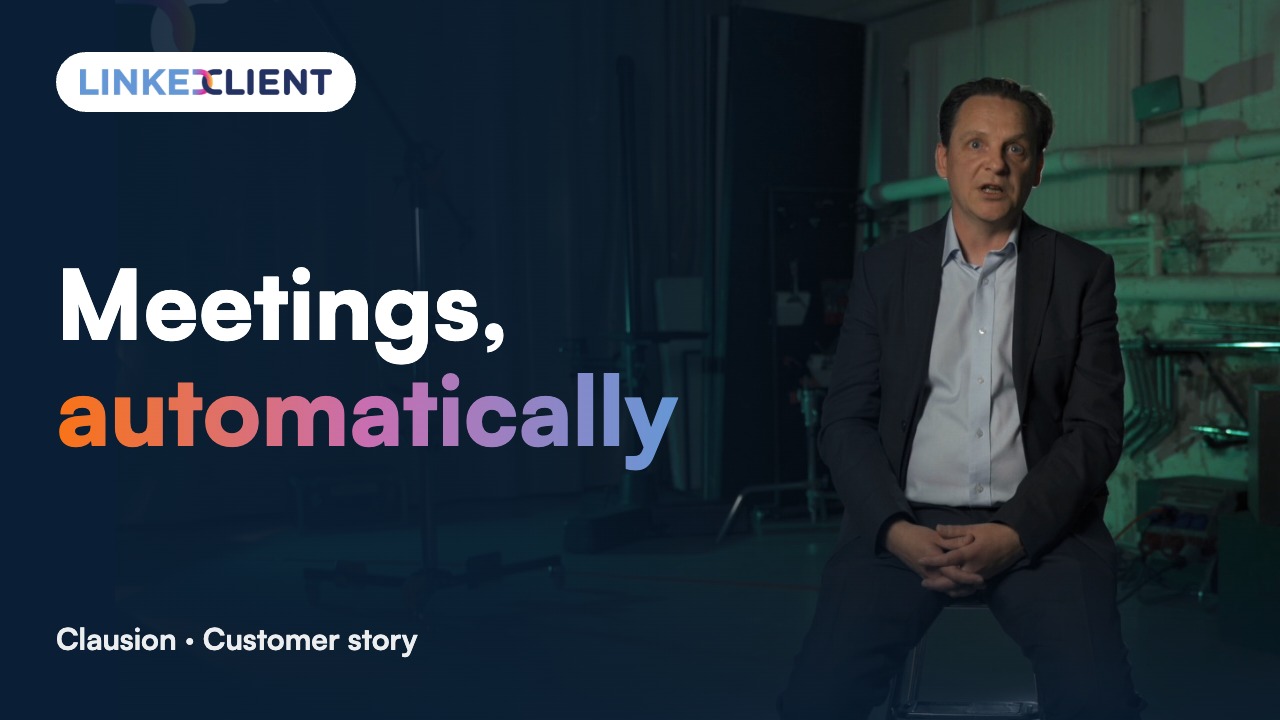
“We can pinpoint the people we want to contact and actually get meetings with them automatically.”
Keep reading
Connection request limits
How many requests you can send per week and month.
Read the guideAcceptance rate
What a good rate is and how to raise yours.
Read the guideLinkedIn shadow ban
Reduced reach, LinkedIn jail and how to avoid both.
Read the guideFollow up profile visitors
Templates to turn views into conversations.
Read the guideQuestions about automating LinkedIn connection requests
Can’t find your answer? Ask a real person.
Book a 30-min demoCan you automate LinkedIn connection requests?
Yes. LinkedClient sends connection requests for you within a daily limit you set, after warming each person up with a profile visit and a like on their latest post.
How many connection requests can I automate per week?
Start at 10 to 15 a day and build up. Accounts in good standing send 150 to 200 a week on Basic and up to 200 on Sales Navigator, which is 600 to 800 a month.
Is automating LinkedIn connection requests safe?
No tool can promise zero risk, because LinkedIn’s User Agreement doesn’t allow most third-party automation. You keep the risk low by building volume gradually, sending only in working hours and writing to people who fit.
Should I add a note to my connection requests?
Yes, when you can say something specific. Free LinkedIn accounts can add a note to only a few requests a month, while Premium and Sales Navigator have no limit. Without a note, a profile visit and a like beforehand do the warming up.
Does LinkedClient work with a free LinkedIn account?
Yes. LinkedClient works on any LinkedIn plan, including the free one. You don’t need Premium or Sales Navigator.
Want connection requests that turn into conversations?
Start your free 14-day trial and Elsie can start this week. Or book a 30-minute demo and we’ll show you who she would contact for your business.
14 days free · No card needed · Human onboarding included