LinkedIn InMail credits: how many you get and how to use them
InMail lets you message people you aren’t connected with, but every plan gives you only a handful of credits a month. Here is exactly how many each plan gets, how rollover and refunds work, and how to reach far more people without spending a single credit.
Premium Career gets 5 InMail credits a month, Premium Business 15, Recruiter Lite 30 and every Sales Navigator plan 50. Unused credits roll over and expire after 90 days, so they build up to at most three months’ worth. If someone replies within 90 days, you get the credit back. Free accounts can’t send InMail. A message can have a 200-character subject and a 2,000-character body. Because credits are scarce, most outreach runs on connection requests and messages, which cost nothing. LinkedClient automates those on any LinkedIn plan.
Key takeaways
- Monthly credits: 5, 15, 30 or 50 depending on plan.
- Rollover: credits expire after 90 days.
- Refund: get the credit back if they reply within 90 days.
- Free accounts can’t send InMail.
- Limits: 200-character subject, 2,000-character body.
How many InMail credits does each LinkedIn plan get?
| Plan | Credits per month | Most you can hold |
|---|---|---|
| Free (Basic) | 0 | Can receive, not send |
| Premium Career | 5 | 15 |
| Premium Business | 15 | 45 |
| Recruiter Lite | 30 | 120 |
| Sales Navigator Core, Advanced or Advanced Plus | 50 | 150 |
Premium credits renew on the first day of your billing cycle. Sales Navigator credits renew on the first day of each month, in UTC time. Comparing the two plans? Read Sales Navigator vs LinkedIn Premium.
How do InMail rollover and refunds work?
| Rule | What LinkedIn says |
|---|---|
| Rollover | Unused credits move to the next month and must be used within 90 days. |
| Refund | You get the credit back if the person responds within 90 days, even with “Not interested”. |
| Subject line | Up to 200 characters, and optional. |
| Message body | Up to 2,000 characters. |
| Free accounts | Can receive unlimited InMail but must upgrade to send it. |
| Open Profile | Premium members with Open Profile can be messaged for free, within limits LinkedIn sets. |
InMail, connection request or message: which should you use?
| InMail | Connection request | Message | |
|---|---|---|---|
| Cost | 1 credit | Free | Free |
| Volume | 5 to 50 a month | 150 to 200 a week in good standing | 50 to 100 a day |
| Needs a connection | No | No | Yes |
| Best for | A few high-value people | Starting new relationships at scale | Following up and booking meetings |
Connection requests and messages reach far more people than InMail ever can. See the connection request limits and the LinkedIn message limit.
How do you write an InMail that gets a reply?
Make the subject about them
Their company, their post or their role. Not your product.
Keep it under 100 words
You have 2,000 characters. You don’t need them.
Give one reason you picked them
Show you looked at their profile.
Ask one easy question
A question they can answer in a line gets replies, and replies give you the credit back.
Send to people who fit
Every reply refunds a credit, so targeting pays for itself.
How does LinkedClient reach people without InMail credits?

Connection requests instead
Elsie sends connection requests within your daily limit, up to 30 a day.
Visit and like first
Each person gets a profile visit and a like before the request, so more people accept.
Messages that cost nothing
Once they accept, Elsie writes the first message and follow-ups for you.
Works on free LinkedIn
You don’t need Premium or Sales Navigator to use LinkedClient.
Reach more buyers than InMail ever could
Try it free for 14 days, no card needed, or book a 30-minute demo and we’ll show you who Elsie would contact for your business.
What results do LinkedClient customers get?
These results cover all of LinkedClient. Reaching new people is one part of it.
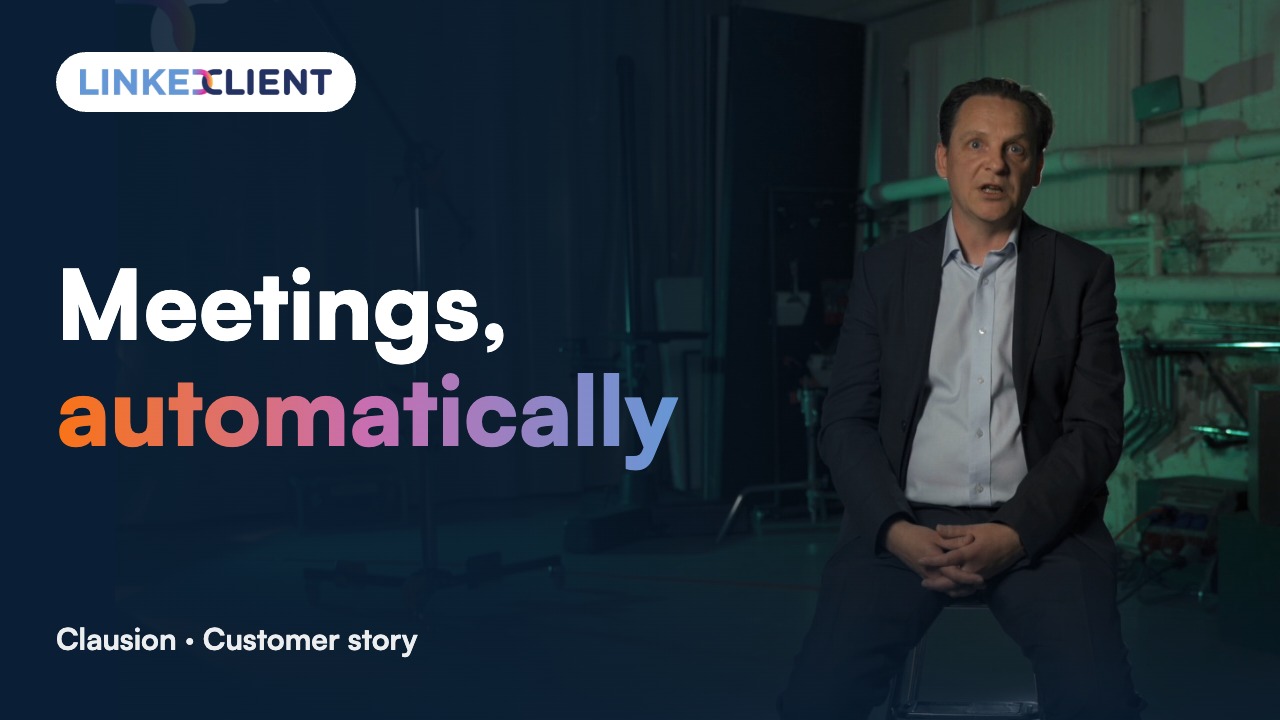
“We can pinpoint the people we want to contact and actually get meetings with them automatically.”
Keep reading
Sales Navigator vs Premium
Price, InMail, filters, and which one you need.
Read the guideLinkedIn message limit
How many messages you can safely send per day.
Read the guideConnection request templates
15 notes under 200 characters that get accepted.
Read the guideConnection request limits
How many requests you can send per week and month.
Read the guideQuestions about LinkedIn InMail credits
Can’t find your answer? Ask a real person.
Book a 30-min demoHow many InMail credits do I get per month?
Premium Career gets 5, Premium Business 15, Recruiter Lite 30 and every Sales Navigator plan 50. Free accounts get none.
How many InMails does Sales Navigator include?
50 a month on Core, Advanced and Advanced Plus. Unused credits roll over, up to 150.
Do LinkedIn InMail credits roll over?
Yes. Unused credits move to the next month but expire after 90 days.
Do I get my InMail credit back?
Yes, if the person responds within 90 days. Even a “Not interested” reply counts.
Can free LinkedIn accounts send InMail?
No. Free accounts can receive InMail but must upgrade to send it. They can message Premium members who have Open Profile turned on.
What is the InMail character limit?
Up to 200 characters in the optional subject line and up to 2,000 characters in the body.
How does LinkedClient help if I have few InMail credits?
LinkedClient reaches people with connection requests and messages instead, which cost nothing and work on any LinkedIn plan, including the free one.
Want to reach buyers without counting credits?
Start your free 14-day trial and Elsie can start this week. Or book a 30-minute demo and we’ll show you who she would contact for your business.
14 days free · No card needed · Human onboarding included