LinkedIn MCP server: run LinkedIn and email outreach from Claude, ChatGPT, Grok or Copilot
Connect LinkedClient to the AI assistant you already use. With our LinkedIn MCP server, Claude, ChatGPT, Grok and Microsoft Copilot can find leads, start campaigns, answer replies and check your numbers in LinkedClient, just by asking.
LinkedClient’s MCP server is a hosted connection at https://mcp.linkedclient.com/mcp. Add it to Claude, ChatGPT, Grok, Microsoft Copilot or another assistant that supports remote MCP servers, sign in to LinkedClient and press Allow. Your assistant can then look things up and act in LinkedClient for you, such as starting a campaign, approving messages or answering a reply, within your account’s limits and permissions. You can try it free for 14 days, no card needed, and your first month after the trial is $79.
Key takeaways
- One address for every assistant: https://mcp.linkedclient.com/mcp.
- You sign in to LinkedClient and press Allow. No API keys to copy.
- Your daily limits, working hours and role still apply.
- Tools that send messages or delete data are marked, so your assistant can check with you first.
- Works with Claude, ChatGPT, Grok, Microsoft Copilot and other MCP clients.
Which AI assistants work with LinkedClient?
Any assistant that supports remote MCP servers with sign-in can connect. These are the most common.
Add LinkedClient as a custom connector in Claude on the web, desktop or mobile.
Add LinkedClient as a custom MCP server and use it in your chats.
Add LinkedClient as a custom connector in Grok.
Connect LinkedClient to an agent in Microsoft Copilot Studio.
Other MCP clients that support remote servers with OAuth sign-in connect the same way. Claude, ChatGPT, Grok and Microsoft Copilot are trademarks of their owners. LinkedClient is not affiliated with or endorsed by them.
How do you connect LinkedClient to your AI assistant?
Copy the address
The LinkedClient MCP server address is https://mcp.linkedclient.com/mcp. You also find it in LinkedClient under Settings, AI Assistants.
Add it in your assistant
In Claude, open Settings, Connectors and choose Add custom connector. In ChatGPT, add a custom MCP server. In Grok, add a custom connector. In Microsoft Copilot Studio, add an MCP server tool to your agent.
Sign in and press Allow
Your assistant opens LinkedClient. Sign in with your LinkedClient account and press Allow. There are no API keys to copy.
Then ask in plain language, for example “Show me the messages waiting for my approval” or “Start a campaign to CFOs at logistics companies in Sweden”.
On a Claude Team or Enterprise plan, a Claude owner adds the connector for the whole company first, and everyone then presses Connect. Some assistants only allow custom connectors on paid plans, so check your assistant’s help pages.
What can your AI assistant do in LinkedClient?
| Area | Ask your assistant to |
|---|---|
| Campaigns | Create a campaign, change its steps, start or pause it, and see how it’s going |
| Leads | Import people from a LinkedIn or Sales Navigator search, find contacts, add notes and tags |
| Messages | Show the messages Elsie wrote, then approve, edit, reschedule or reject them |
| Replies | Answer a reply, send a message or mark a conversation |
| Inbound | Follow up profile visitors and handle connection requests |
| Likes and comments | Find prospects’ posts, draft a comment, and like or comment |
| Company page | Invite connections to follow your company page |
| Statistics | Show your campaign and account statistics |
| Settings | Update your sales profile, AI settings and daily limits |
Your assistant works through your own LinkedClient account, so it can only do what your account and role allow. See all LinkedClient features and integrations.
Is it safe to let an AI assistant run your LinkedIn outreach?
Yes, with the same guard rails as the LinkedClient app. Your assistant signs in through LinkedClient, never with your LinkedIn password, and you can disconnect it at any time under Settings, AI Assistants.
- Your limits still apply. Daily limits and working hours work exactly as in the app.
- Your role still applies. The assistant can only do what your account is allowed to do.
- Risky actions are marked. Tools that send something to a real person or delete data are labelled, so your assistant can check with you first.
- You see who’s connected. Settings, AI Assistants lists everyone in your organization who has connected an assistant.
What does Elsie do when no chat is open?
Your AI assistant is the remote control. Elsie, LinkedClient’s AI sales assistant, keeps working in the background: she writes, follows up, answers replies and books meetings, even when no chat is open.
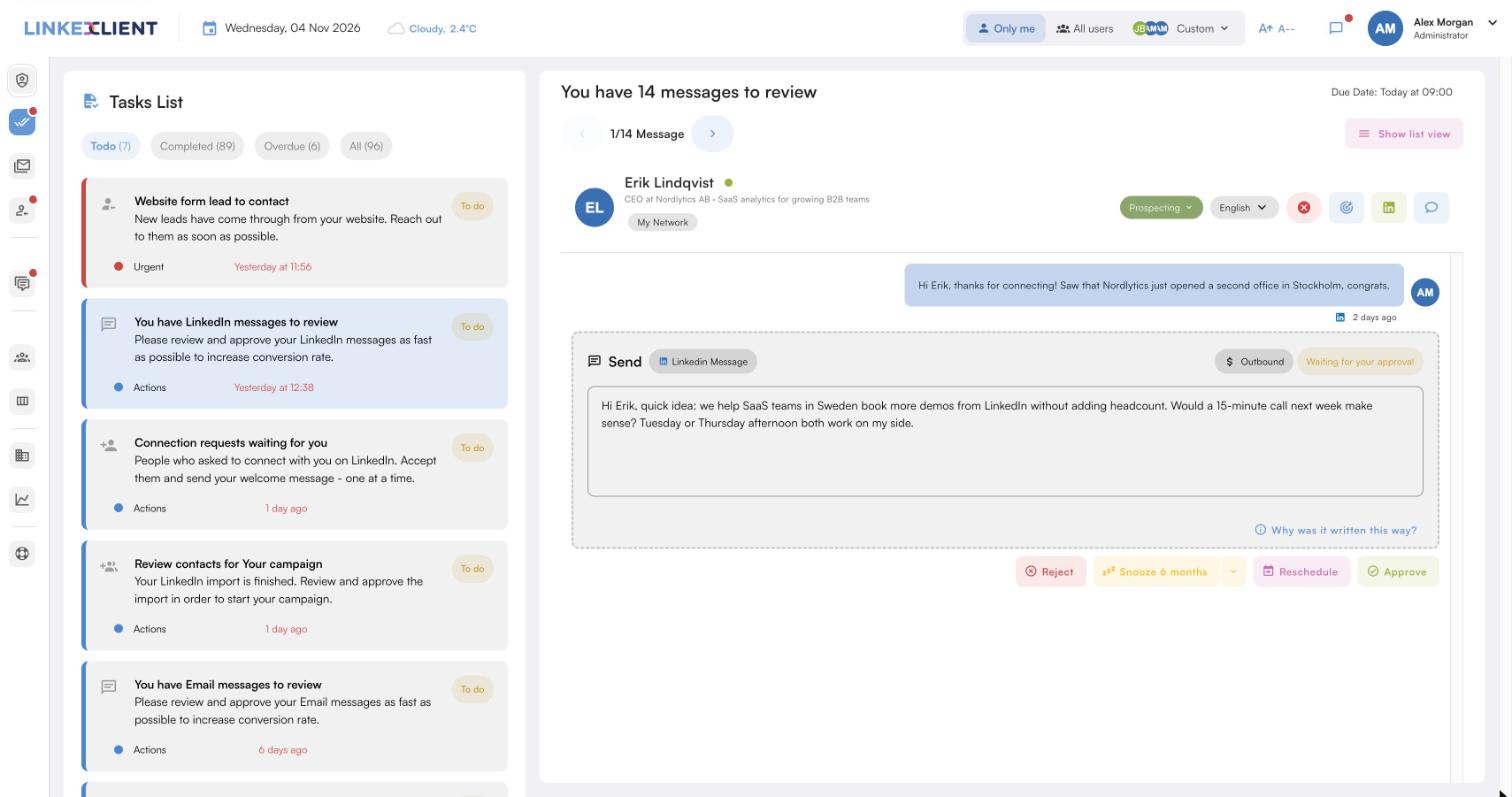
Leads from one sentence
Describe who you want to reach, or import a LinkedIn, Sales Navigator or Recruiter search.
Personal messages
Elsie researches each person and company and writes connection requests, messages and emails.
Answers in five minutes
On autopilot Elsie answers replies within five minutes and handles common objections.
Meetings in your calendar
Elsie agrees a time in the conversation and books it, with no calendar link.
| LinkedClient | At a glance |
|---|---|
| What it is | An AI sales assistant. Elsie finds leads, writes to them on LinkedIn and email, answers replies and books meetings. |
| Free trial | 14 days, no card needed. Then $79 for your first month. |
| Price after that | Starter $149 per user per month, or $129 billed annually. Professional (2+ users) $299, or $249 billed annually. All 109 features in every plan. |
| Works on | LinkedIn Basic, Premium, Sales Navigator and Recruiter |
| Meetings | Booked in the conversation, without calendar links, in Google or Microsoft calendars |
| Connects to | HubSpot, Pipedrive, Salesforce, Zapier, webhooks and a public API |
| Compliance | GDPR and EU AI Act compliant |
| Setup | Live in about 15 minutes, with onboarding from a real person |
Try LinkedClient with your AI assistant
Try it free for 14 days, no card needed, then just $79 for your first month. Or book a 30-minute demo and we’ll show you who Elsie would contact for your business.
What results do LinkedClient customers get?
These results come from teams that use LinkedClient to book their sales meetings.
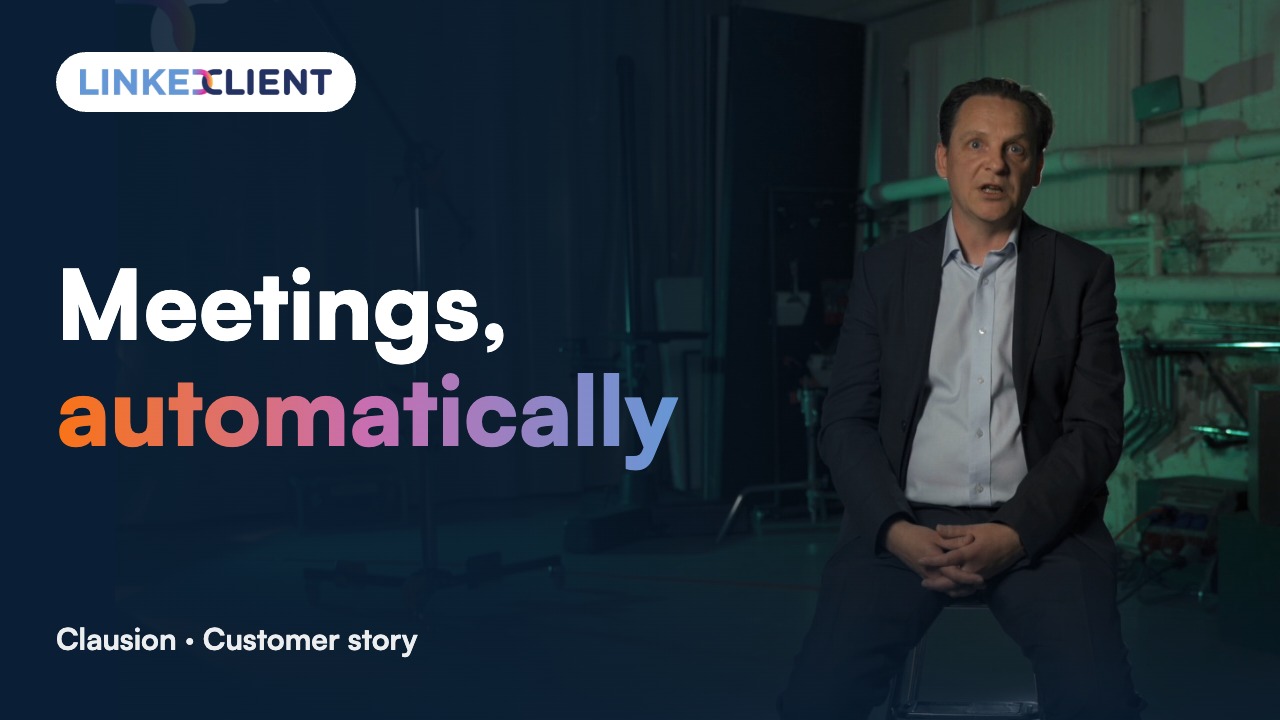
“We can pinpoint the people we want to contact and actually get meetings with them automatically.”
Keep reading
Questions about the LinkedClient MCP server
Can’t find your answer? Ask a real person.
Book a 30-min demoWhat is an MCP server?
MCP, the Model Context Protocol, is an open standard that lets AI assistants use tools in other software. An MCP server is the connection point. LinkedClient’s MCP server lets your assistant read and act in your LinkedClient account.
What is the LinkedClient MCP server address?
https://mcp.linkedclient.com/mcp. You also find it in LinkedClient under Settings, AI Assistants.
Does it work with ChatGPT?
Yes. Add LinkedClient as a custom MCP server in ChatGPT and sign in. Custom MCP servers may need a paid ChatGPT plan, so check ChatGPT’s help pages for yours.
Does it work with Grok and Microsoft Copilot?
Yes. In Grok, add LinkedClient as a custom connector. In Microsoft Copilot Studio, add it to your agent as an MCP server tool and sign in with OAuth.
Do I need to install anything?
No. The MCP server is hosted by LinkedClient. You paste one address into your assistant and sign in.
Can my assistant send messages without asking me?
It only does what you ask and what your account allows. Tools that send a message to a real person or delete data are marked, and most assistants, including Claude, let you choose which tools need your approval.
How do I disconnect an assistant?
In LinkedClient, open Settings, AI Assistants and press Disconnect. You can also remove the connector in your assistant.
How much does LinkedClient cost?
Starter is $149 per user a month, or $129 when you pay yearly, with every feature included. Try it free for 14 days with no card, then pay $79 for your first month.
Put LinkedClient inside your AI assistant
Start your free 14-day trial today and Elsie can start this week. If you keep going, your first month is just $79. Or book a 30-minute demo and we’ll show you who she would contact for your business.
14 days free · No card needed · $79 for your first month